

Recommended: JavaScript SDK with React Hooks
For new React apps, we recommend the JavaScript SDK with React Hooks (
@dynamic-labs-sdk/react-hooks) instead of the legacy React SDK documented here. The JS SDK comes with many benefits such as a much smaller bundle size and other optimizations. Use the React quickstart (JavaScript SDK) to get started.General Setup
Enable in Dashboard
Navigate to the Dynamic Developer Console > Embedded Wallets and enable Embedded Wallets, then click settings and choose the chains you’d like wallets created on.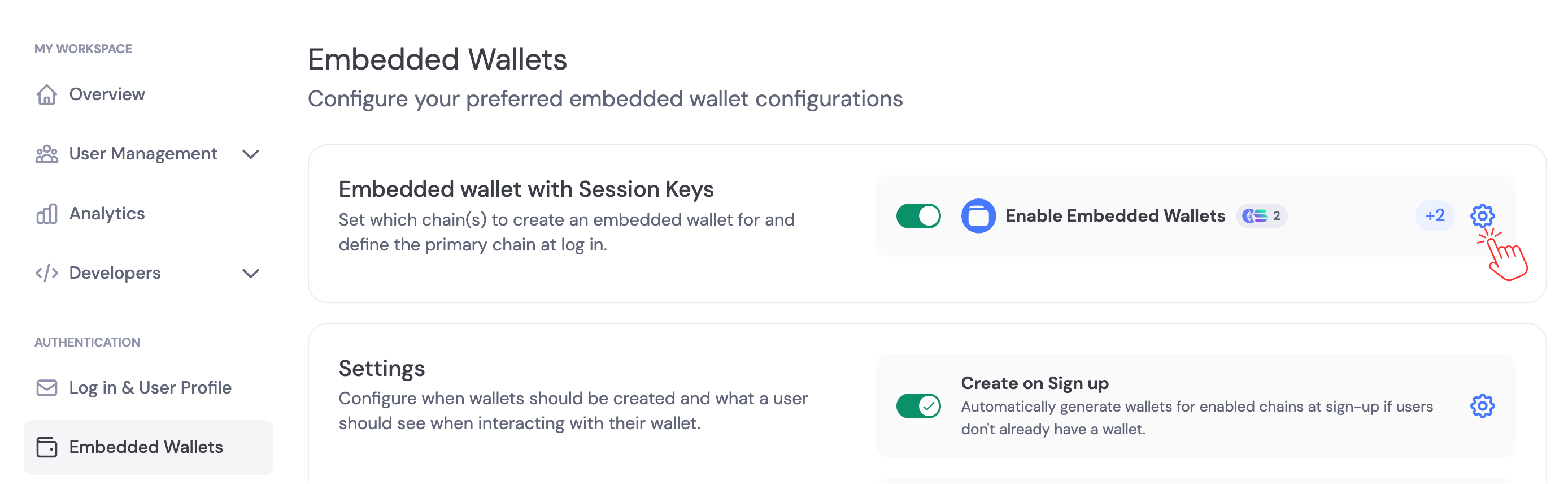
Private Key Export Settings
By default, users can export their private keys from embedded wallets. You can disable private key exports in the Embedded Wallets settings. Navigate to the Security section and toggle Private Key Exports to control whether users can export their private keys.
Using your UI
1
Install Wallet Connectors
Note: You only need to install the connectors for the chains you want to support.
2
Configure CSP
You must whitelist the dynamic auth URL for the iframe connection to work. Here’s how:
In an HTTP header (e.g., Express.js)
In an HTTP header (e.g., Express.js)
⚠️ If you’re already setting CSP, append https://app.dynamicauth.com to the existing frame-src list rather than replacing it.
In an HTML <meta> tag
In an HTML <meta> tag
In NGINX config
In NGINX config
In Vercel or Netlify (via headers file)
In Vercel or Netlify (via headers file)
vercel.json
In _headers (Netlify)
In _headers (Netlify)
_headers
3
Configure Your Provider
Include the appropriate connectors inside your provider settings:Once enabled, you can choose whether wallets are created automatically on signup/sign-in, or created manually in your app logic. See Creating Embedded Wallets.
Next steps
- Create embedded wallets automatically or manually: Creating Embedded Wallets
- Configure signing/confirmation experience: Embedded Wallet Signing Configuration
- Password protection: Password encryption
- Import/export keys: Importing & Exporting Embedded Wallets
- Advanced signing scenarios: Raw Signing (EVM)